Understand checks, reviews, and repairs
Read a build result and choose a safe check and repair, or a free explanation of saved evidence.
Follow the work as it happens
A request can move through queued or planning work, generating or editing files, validation, and sometimes repair and verification. The steps and checks depend on the project. Open the recorded work log and build details for the evidence behind a result. Completion time alone does not tell you whether a build succeeded.
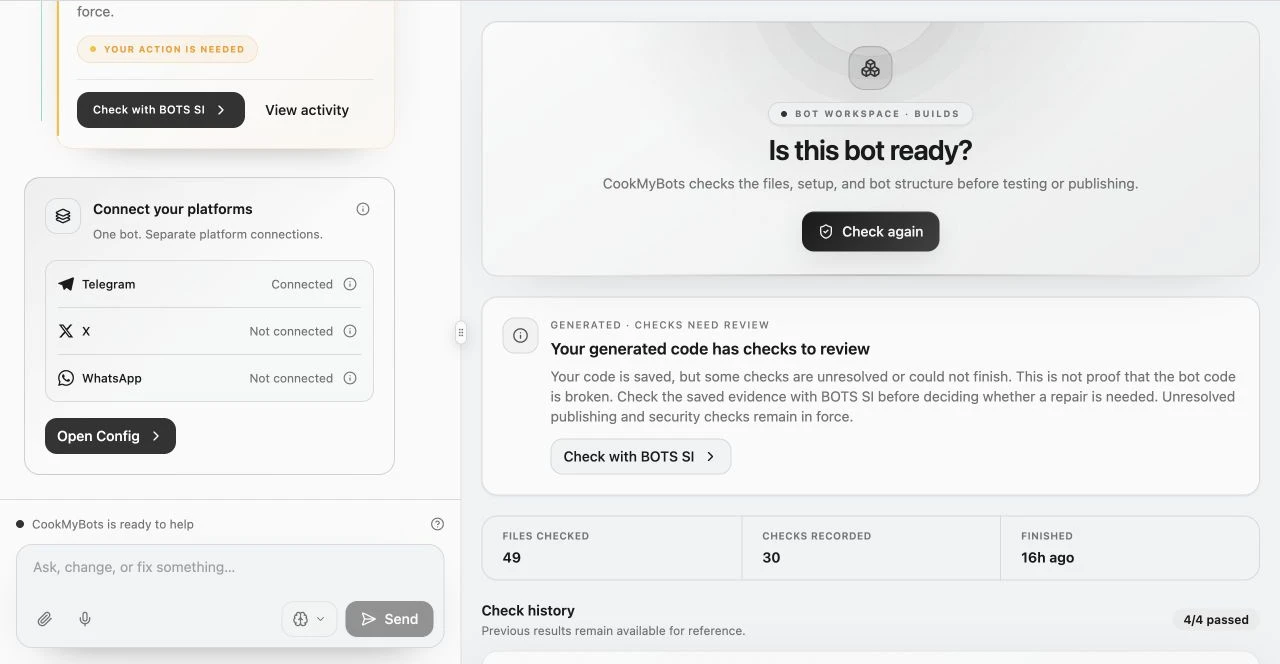
| Result | What it means | Next step |
|---|---|---|
| Ready to review | Saved code passed its recorded build checks | Review, connect accounts, and test relevant features |
| Checked · Ready to test | The build passed, with features or live behavior still to test | Choose Review and test to read all findings and test the relevant features |
| Checked · Setup needed | The saved result identifies a missing connection or setting | Choose Complete setup to open Config |
| Generated · Checks need review | Code is saved, but some checks are unresolved or inconclusive | Choose Review checks to inspect the evidence before deciding what to do |
| Generated · Needs repair | A confirmed source or build failure needs attention | Review diagnostics or request Fix with BOTS SI |
| Failed | This attempt has no confirmed usable saved result | Read Activity and any saved progress before retrying |
Leave a build, stop work, or retry
You can leave an active Agent Run or close the browser. Work continues on the server. Confirm your email address and enable BOTS SI updates in Account settings if you want build and edit notifications. Return to the project to read the result; reopening a completed run from the workspace lets you review its history.
Use Stop when you want to request cancellation, then wait for confirmation. Closing a tab does not cancel work. If stopping is not confirmed, check the current task and Activity before retrying. Cleanup and usage recording may continue after cancellation, so another request can remain unavailable until they finish.
Retry starts another attempt with normal usage billing. When a verified stage checkpoint is available, it can resume from that point. Review the resume information before confirming. If the required source, plan, or attachments cannot be recovered safely, follow the stated recovery action rather than assuming the build restarted from scratch.
Understand charges for interrupted work and unused reservations
Choose how BOTS SI should help
The current result determines the next action. Review and test opens the saved build findings. Complete setup opens Config for missing settings or connections. Fix with BOTS SI is offered for a confirmed code problem. These navigation buttons do not start an AI request.
Builds shows every recorded check, with failures and warnings first. Older results stay in history without repeated repair buttons. If the saved code changes after a check, run a fresh check before relying on that result.
Check & fix with BOTS SI prepares a request in chat for you to review and send. It checks saved evidence and the current code, then attempts a focused repair when the evidence confirms a code problem. Missing credentials, unavailable providers, and platform problems need the right setup or recovery action, not an unnecessary code edit. Opening the card does not start work.
Check only is the free, read-only alternative. Its unchanged prepared request explains saved results without an AI repair, build retry, publishing, bot restart, or settings change. Added instructions or attachments change the request and may require a normal paid operation.
Check and repair work uses normal AI billing and spending limits. Repairs preserve existing features, credentials, and user data, then undergo validation. Security and publishing checks stay in force. No running bot is restarted or published by this action. Review the result and test the relevant live workflow before publishing; a repair is not a guarantee that every feature works.